Template Settings Interface
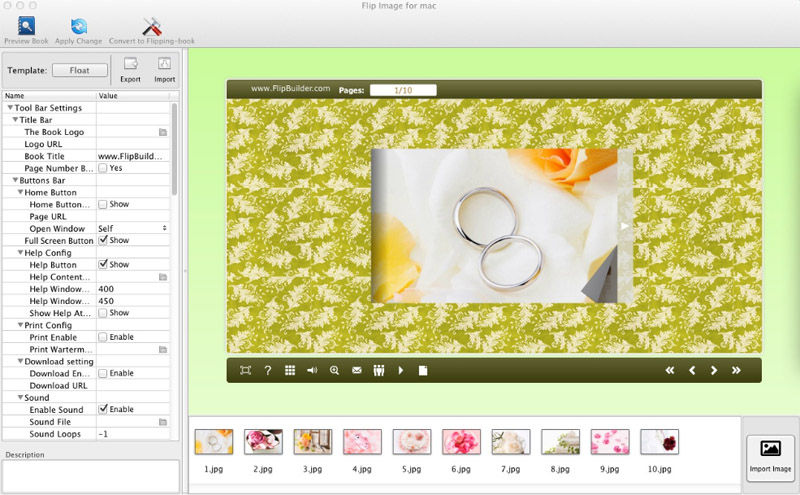
Flip Image for Mac provides three different templates at present: Classical, Float and Spread.
Each template contains some unique settings, the below instructions will show you details:
1. Choose Template
2. Toolbar Settings
3. Flash Display Settings
1. Choose Template:
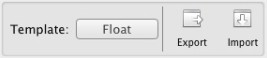
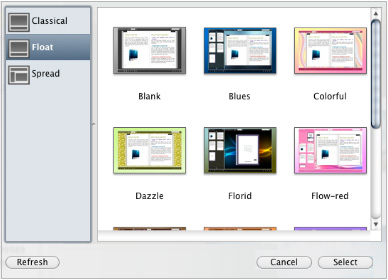
Click icon to select templates from below interface:
Ps,
 Click this icon is to save current settings as a TXT file for later uses;
 Click this icon is to import stored setting file at once.
2. Tool Bar Settings:
(1) Title Bar (only can be set in Float Template)
i. Title
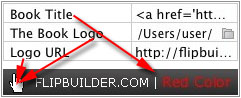
Customize book title and logo for showing on the top of your flipbook. You are enabled to set the book title as HTML format text.
For example: <a href='http://www.flipbuilder.com' target='_blank'>FLIPBUILDER.COM</a> | <font color='#ff0000' size='14'>Red Color</font>
ii. Page Number Box on Bottom (only in Float Template)
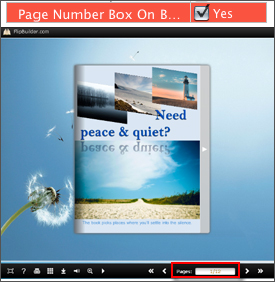
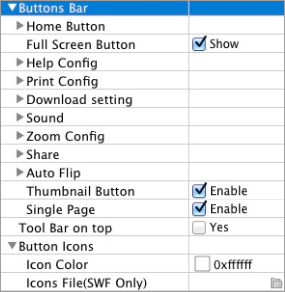
(2) Buttons Bar
i. Home Button
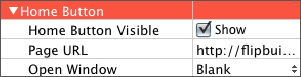
You can add a home button to help reader to click and go to your website directly.
ii. Full Screen

To enable "Full Screen" functionality in output flipbook, check "Show" in "Full Screen Button" option.
Then you can click icon  to view flipbook in Full Screen, click icon
  or "Esc" button to exit from the Full Screen.
Or if you want to show your flipbook without Tool Bar while showing in Full Screen mode, you can set "No" in "Full Screen without Tool Bar" (just in Classical Template):

iii. Help Config
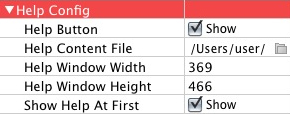
To show tips about viewing flipbook, you can set "Show" in "Help Button" option, and you can define Help Content manually by inserting "Help Content File (image or SWF)", also enable to define the Width and Height of the Help image or swf. If you set "Book->Retain the book to center->No", you can set "Show Help At First->Show" to display the Help Panel with the Book as below:
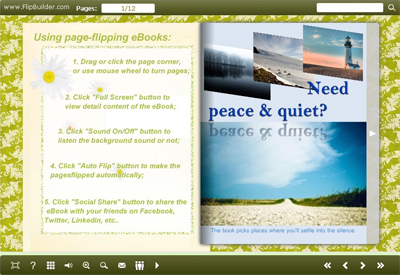
You can also click the button  to view the same Help page in pop-up window.
iv. Print Config
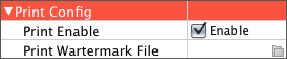
Check "Print Enable->Enable", you can set "Print Watermark File" to add a logo or other kinds of watermark (image or SWF) only show in print out pages but won't show while viewing in eBook.
lick icon  to set print page range as below:
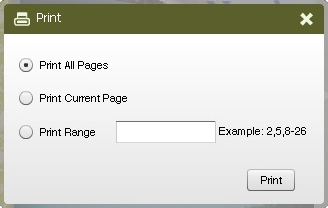
v. Download setting

If you want your flipbook readers to download the image file or the flipbook directly from your website, check "Download Enable->Enable" option, then input the Download URL directly, you can use absolute path like "http://www.flipbuilder.com/flip-image/example/files/download/FlipimageDemo.jpg" or relative path like "/files/download/FlipimageDemo.jpg" (make sure you have uploaded the image to the same path).
Then readers can click the icon  to download your uploaded image file directly.
vi. Sound Panel
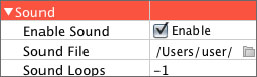
If you want to add background sound to your flipbook, such as a song or other audio file, check "Enable Sound->Enable", then click Open Folder icon to choose "Sound File" from your computer, then set "Sound Loops", "-1" stands for playing the sound file all the time while viewing flipbook, other value (N>0) stands for the times of playing the sound file.
vii. Zoom Config
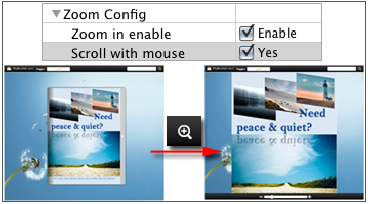
To Enable Zoon In functionality, check "Zoon in enable->Enable", then set "Zoom Scale", the value is the times between zoomed page size and the current page size.
In Float template, you don't need to set Zoom Scale, you can adjust more conveniently by the zoom in tool like this:

You can also set "Scroll with mouse->Yes" to scroll zoom in page while moving mouse.
viii. Share
a. Share Button
If you want readers to share via Email, you can enable "Share" feature as below shows:
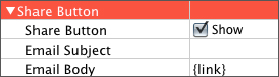
When the viewers click the share button  , they will enter into the Email interface with the link of your flipbook in the Email body.
b. Social Share
If you want your flipbook viewers to send the link to their friends or clients via Facebook, Twitter, Linkedin, Google, Yahoo and so on, you can add a Social Share button in your flipbook for readers to send out your flipbook link immediately:

The readers just need to click the "Social Share" button  , then the below window will pop up for them to choose share channel:
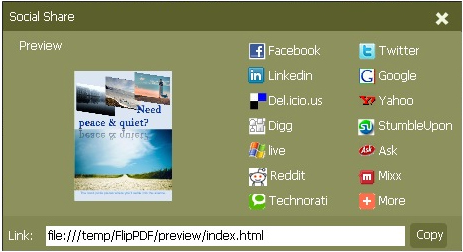
ix. Auto Flip
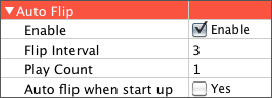
To auto flip your eBooks, you can check "Auto Flip->Enable" option; then define the Flip Interval (seconds of staying on each page); the value of "Play Count" stands for the times of auto playing the eBook, and "-1" stands for playing forever (after clicking the Auto Flip button  , the flipbooks will be flipped by staying 3 seconds per page); if you want to auto start and flip the eBook after opening, just set "Auto flip when start up->Yes".
x. Thumbnail Button

Show Thumbnail Button  (set "Enable") to view page thumbnails of your book, or you can Disable it to hide the button.
xi. Single Page Button

If your book contains landscape pages, or the page content is different to read for the font is too small, you can set "Single Page->Enable" to enable readers to click "Single Page" icon  to view pages one after another, then click "Double Page" icon
  to back to the normal book reading mode.
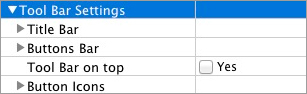
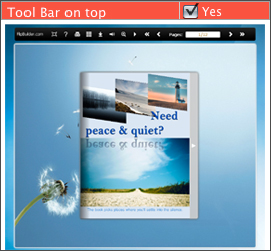
(3) Tool Bar on Top (only in Float Template)
If you want to place the toolbar in Float templates on the top of the flash eBook, you can set "Tool Bar on Top->Yes":
(4) Button Icons
i. Icon Color
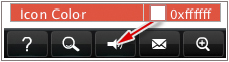
ii. Icon File (SWF Only)
Select the Tool Bar Button to replace with your own icon.

More details please view here:
3. Flash Display Settings:
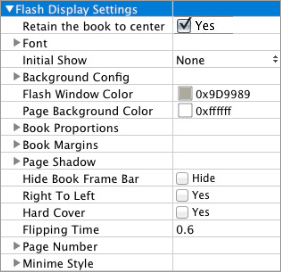

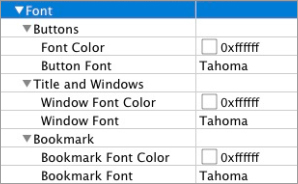
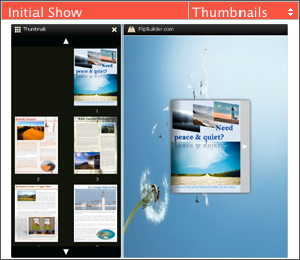
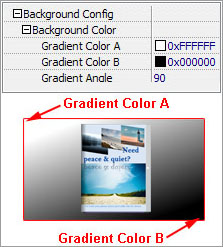
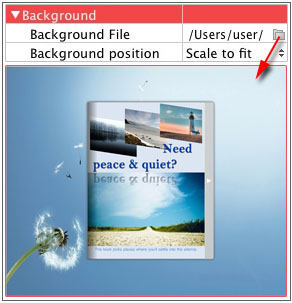
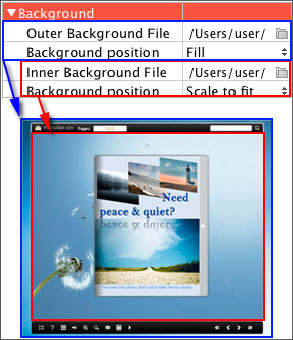
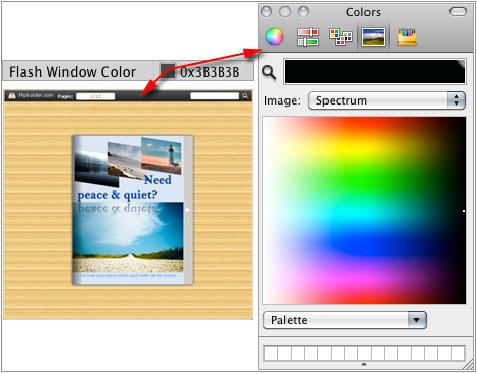
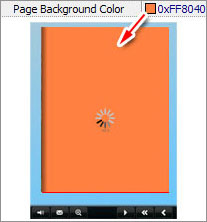
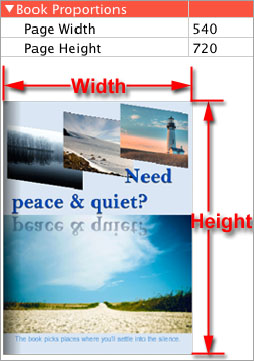
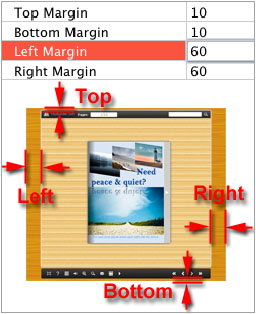
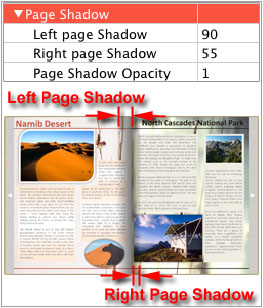

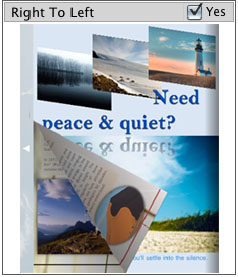
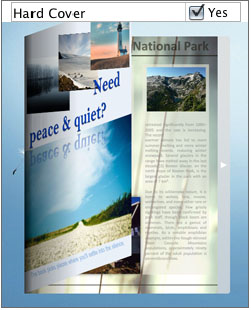

At last, click "Apply Change" icon  to apply the settings (You won't preview the applied effect before clicking this icon).