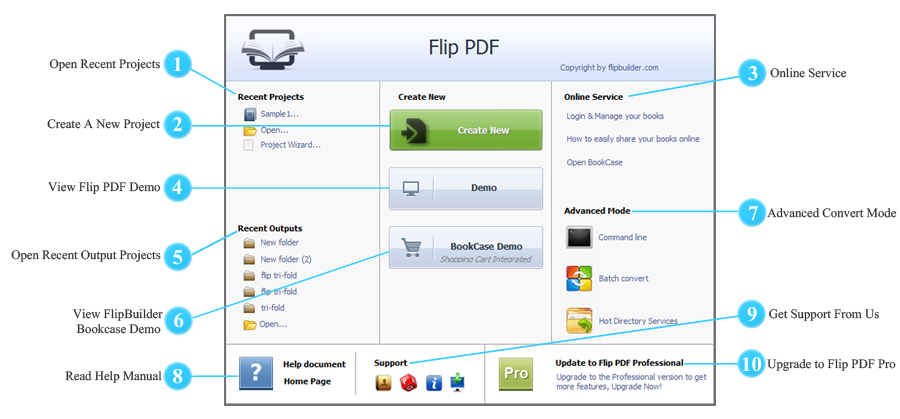
 Open Recent Projects
You can click the projects (*.flb) below "Recent Projects" to open the project directly.
 Create A New Project
Click the "Create New" button to open the Import window where you can import PDF file(s) and customize import settings.
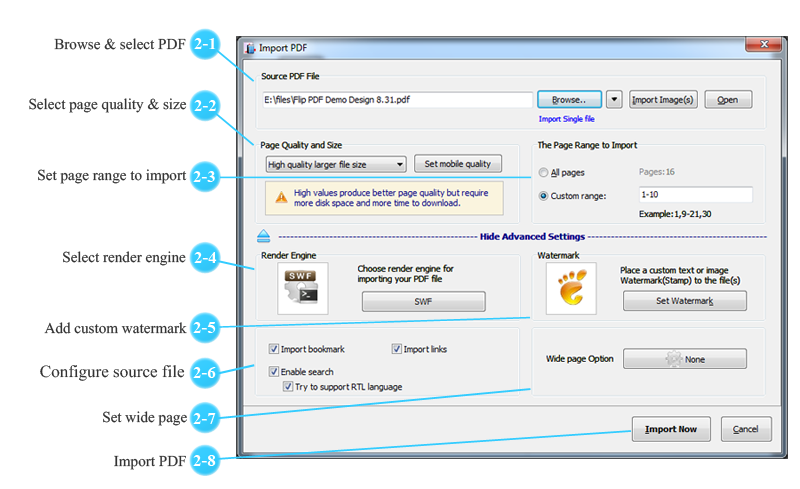
 Browse & select PDF

Click the "Browse.." icon to open the Windows browse window and select a PDF file.
Or you can click the inverted triangle to import multiple PDF files to carry out batch conversion.
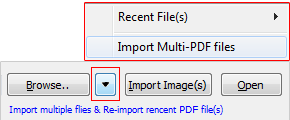
Optionally, you can click "Import Image(s)" to import and convert images to page flipping publication.
 Select page quality & size
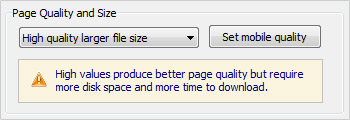
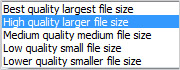
There are 5 types of page quality and size for you to choose for the output flipbook. You can select one type according to your needs. In general, high values produce better page quality but require more disk space and time to download.
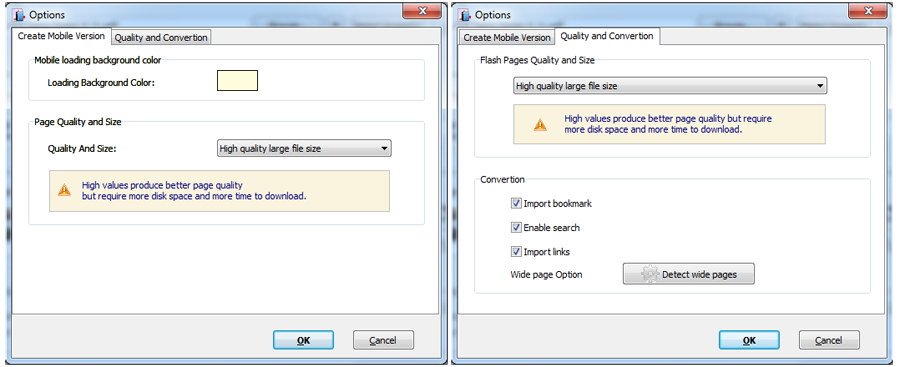
In addition, you can click "Set mobile quality" to configure settings for the mobile version.
 Set page range to import
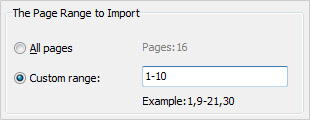
After you select a PDF file, you can choose to import all pages or specific pages.
 Select render engine
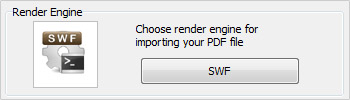
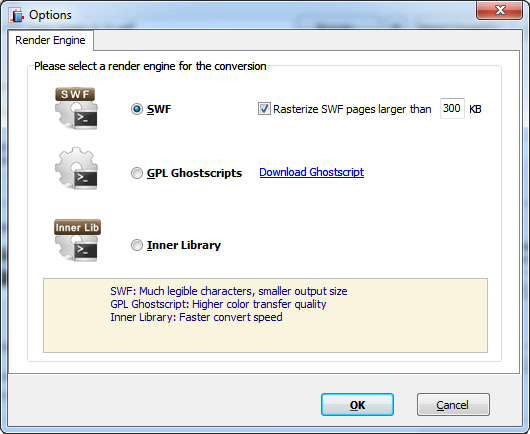
There are 3 render engines for you to choose: SWF, GPL Ghostscript and Inner Library.
 Add custom watermark
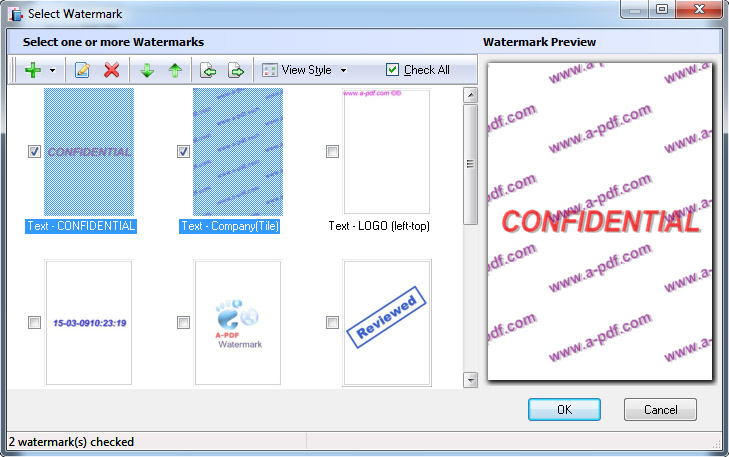
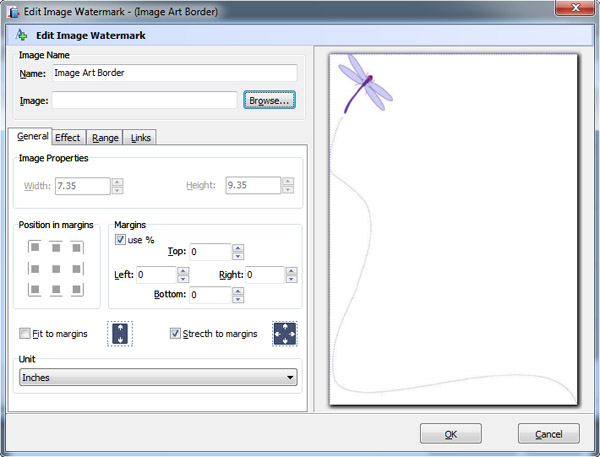
Click "Set Watermark" to open the Watermark window where you can add and customize watermark for the flipbook. You can add Text watermark, Dynamic Datetime watermark, Image watermark, PDF watermark and Shape watermark.
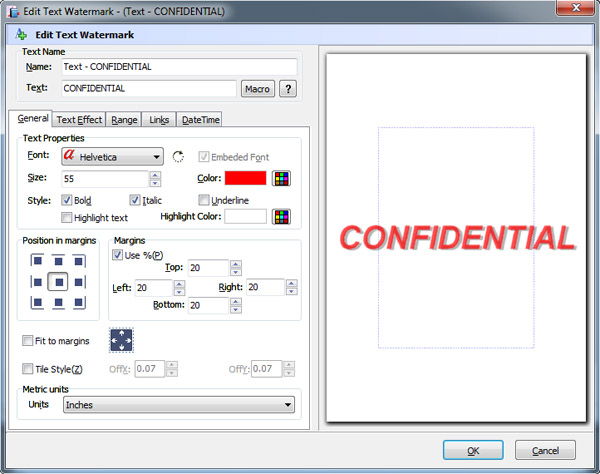
And after you select a watermark, you can customize it with various settings.
Edit Text Watermark
Edit Image Watermark
 Configure source file
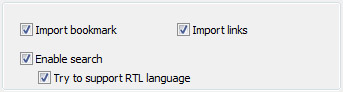
Import bookmark: Check this box to enable Flip PDF to import the Table of Contents of the source PDF file.
Import links: Check this box to enable Flip PDF to reserve the links of source PDF and import to the flipbook.
Enable search: Check this box to enable the flipbook text content to be searched by inputting keywords. And you can select "Try to support RTL language" option so Right-to-Left language (e.g., Arabic) can be searched too.
 Set wide page
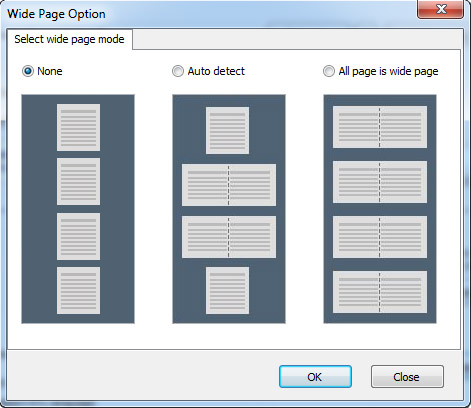
 Import PDF
 Online Service
Click "Login & Manage your books" to login with your registered account to manage your books online;
Click "How to easily share your books online" to learn about how to publish the flipbook online to web page or blog.
Click "Open BookCase" to create and manage the bookcase.
 Online Service
Click the "Demo" button to open and view the default flipbook demo created by Flip PDF.
 Open Recent Output Projects
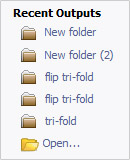
If you have published flipbooks, then you will see these output folders under Recent Outputs section. And you can open these output flipbooks by clicking the folder (make sure that the output folders and files retain in original output path).
 View FlipBuilder Bookcase Demo
 Advanced Convert Mode
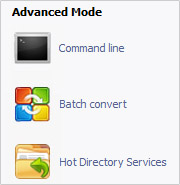
In addition to the standard convert mode, you can also operate the PDF to flipbook conversion with Batch Convert mode. Besides, if you upgrade to Flip PDF Professional version, you can use Command Line and Hot Directory Services for free.
 Read Help Manual

If you are new to this software or have any difficulty while using it, you can refer to the Help Manual.
 Get Support From Us
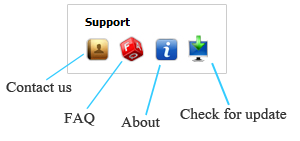
If you have any question, you can contact our support team for help or go to the FAQ page to get answer. And you can click the "Check for update" icon to see if there is an updated version and you can download the latest version directly.
 Upgrade to Flip PDF Pro

You can update to the professional version that allows you to add rich media and other animation elements to the flipbook.