 in setting interface to enter into Flip Printer Option interface:
Click icon in setting interface to enter into Flip Printer Option interface:
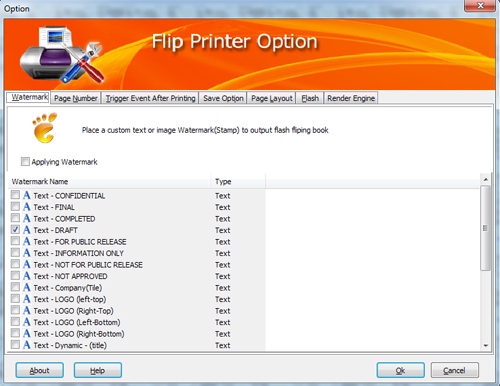
The below instructions will show you details of each panel:
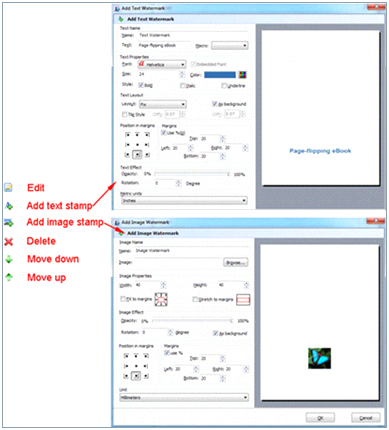
Check watermark option  to choose default watermarks like "Text - CONFIDENTIAl" or "Image - LOGO", or edit new text or image watermarks:
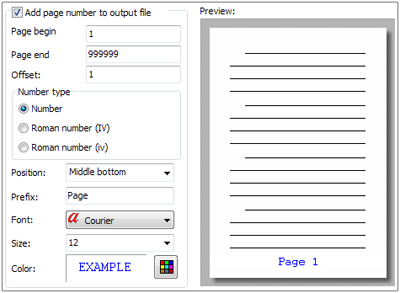
Select "Page Number" on the top bar, and then check the option to set number types, number properties and so on:
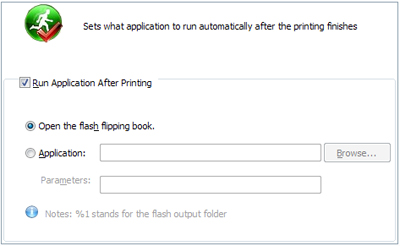
Select "Trigger Event After Printing" to set what application to run automatically after the printing finishes, check the option , the default action is "Open the flash flipping book":
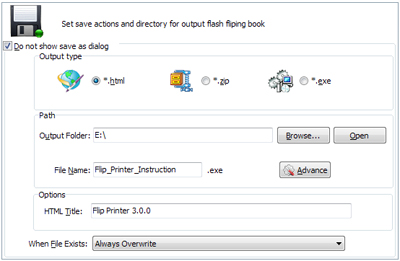
If you want to print your file into flipbook directly without choose output format and output path, check this option  , then define output type, output path and options in below interface:
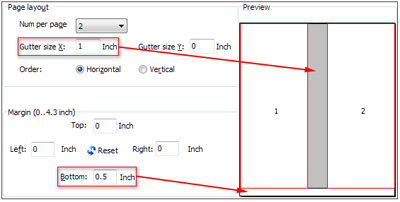
If you want to put two or more pages into one sheet of flipbook, you can set page layout (Num per Page and Margin):
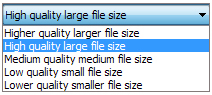
You can set page range which you want to convert, output page quality and enable search:
 Convert all pages to page-flipping eBook;
 Convert defined range page;
There are five types of "Page Quality" you can choose:
Check this option to enable search functionality in created flipbook.
New version 3.0.0 provides 3 different render engines for you to create higher quality page-flipping eBooks, click "Options->Application Options" to enter into "Render Engine" interface:
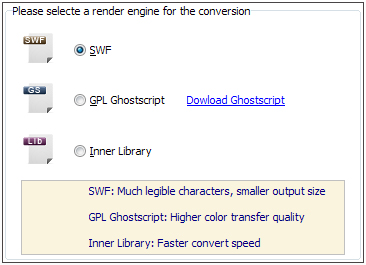
SWF: Much legible characters, smaller output size;
GPL Ghostscript: Higher color transfer quality;
Inner Library: Faster convert speed.
(Change option when file converted failed)