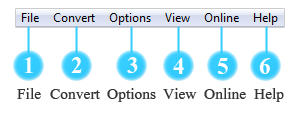
 File
File
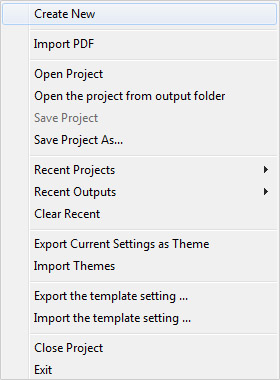
 Create New: Create a new project. Import PDF: Import a PDF or multiple PDF files and convert to flipbook. Open Project: Open a flipbook project (*.flb format file) that you've saved. Open the project from output folder: Open the flipbook project directly from the output folder (where you published the flipbook before). Save Project: Save the flipbook project (*.flb format file) after you do a lot of design work; and you can open the project and continue customizing the flipbook later. Save Project As��: Save the flipbook project as a new file so as not to override the previous settings of your flipbook. Recent Projects: Move your mouse to "Recent Projects" and you will see the latest flipbook projects you've created. Recent Outputs: Move your mouse to "Recent Outputs" and you will see the latest flipbooks you've published. Clear Recent: You can clear all the recent projects and outputs. Export Current Settings as Theme: If you think the current settings are wonderful and want to apply these settings to other flipbooks, you can save and export the settings as a theme (*.thm format file). Import Themes: You can import the themes you exported before directly and apply to current flipbook. Export the template setting��: Export current template settings and save to a Text file. Import the template setting��: Import the template setting (Text file) and apply to current flipbook project. Close Project: Close current flipbook project. Exit: Close the program.
 Convert
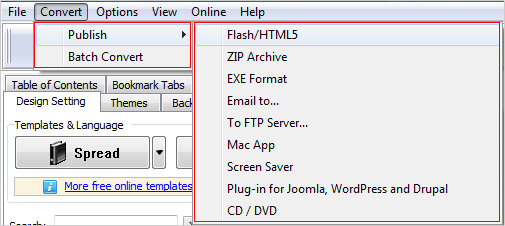
This section contains 2 options: Publish and Batch Convert.
Publish: You can publish the flipbook in various formats. Learn more
Batch Convert: Convert a batch of PDF files into flipbooks.
 Options
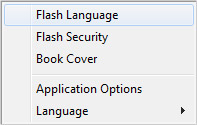
Flash Language
Choose a native language for the flipbook so readers can navigate through your book without encountering language problem. Besides, you can choose multiple languages that can be switched.
Flash Security
Set password security to protect the flipbook from unauthorized access; and you can define specific pages to be protected.
Book Cover
You are able to add, create and edit the cover for the flipbook.
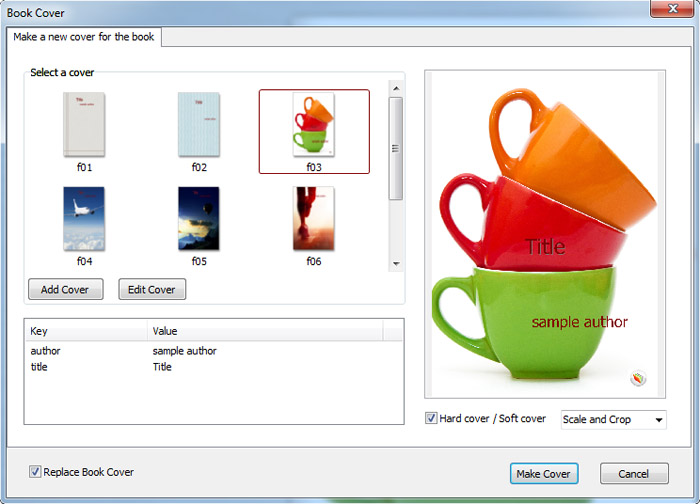
You can edit the cover by adding text, image and info (author, title and logo). And you can make the cover as hard cover or soft cover.
Application Options
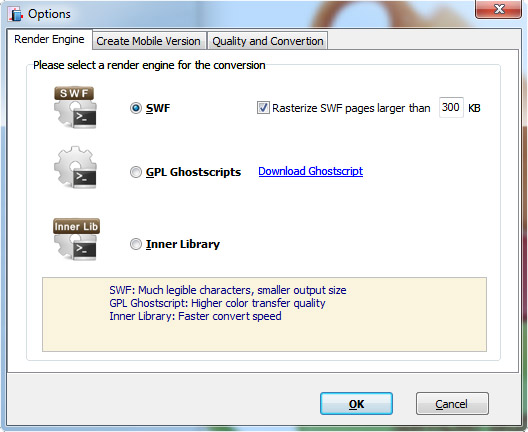
You can select render engine and customize settings for mobile version.
Application Options

This language option is different from Flash Language setting; it allows you to change the UI language of the software. There are 12 languages for you to choose. Now you can operate the software and flipbook conversion in your familiar or even native language.
 View
View
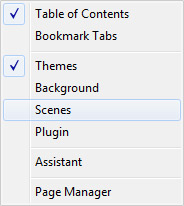
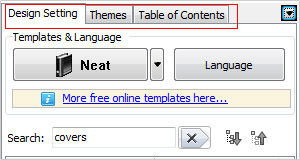
By default, the software will only display a few of these settings in the template setting panel. If you want to display specific setting in the template setting panel, you need to select it.
 Online
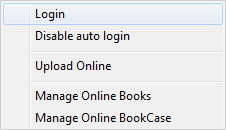
The Online Service of FlipBuilder allows you to publish the flipbooks to our server, which means even though you don't have a website, you can still make your flipbook online and share with others. Learn more about Online Service and the Pricing of Online Service.
Login
After you create an account, you can login with the account to manage the online books.
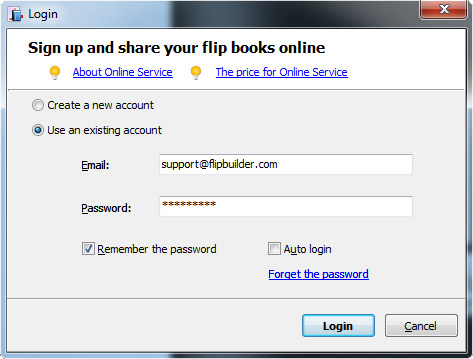
Disable auto login
You can enable Auto login so when you click the "Login" option, you can login to manage your books. Otherwise, you can disable this option.
Upload Online
After you login, you can upload the flipbook to FlipBuilder Online Hosting.
Manage Online Books
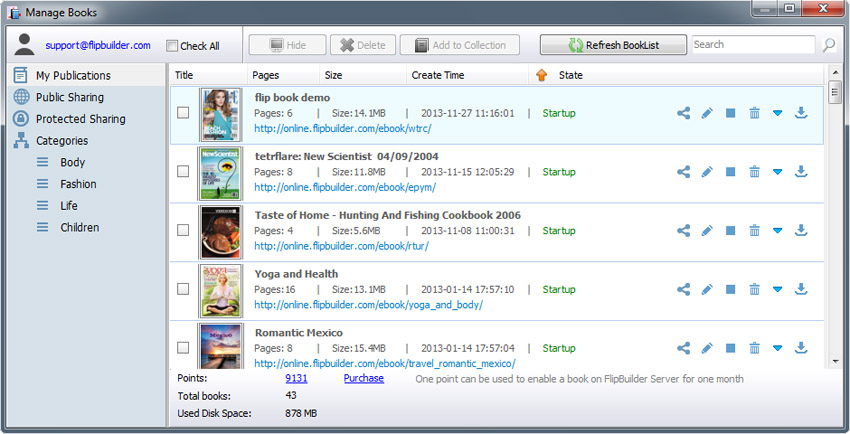
Once you are logged in, you can manage your online flipbooks: share, modify, show/hide, delete, download, move another category, change listing order, add external online books and export the book.
Besides, you can check info of your account: points, total books and used disk space.
More details on Manage Online Books
Manage Online Bookcase
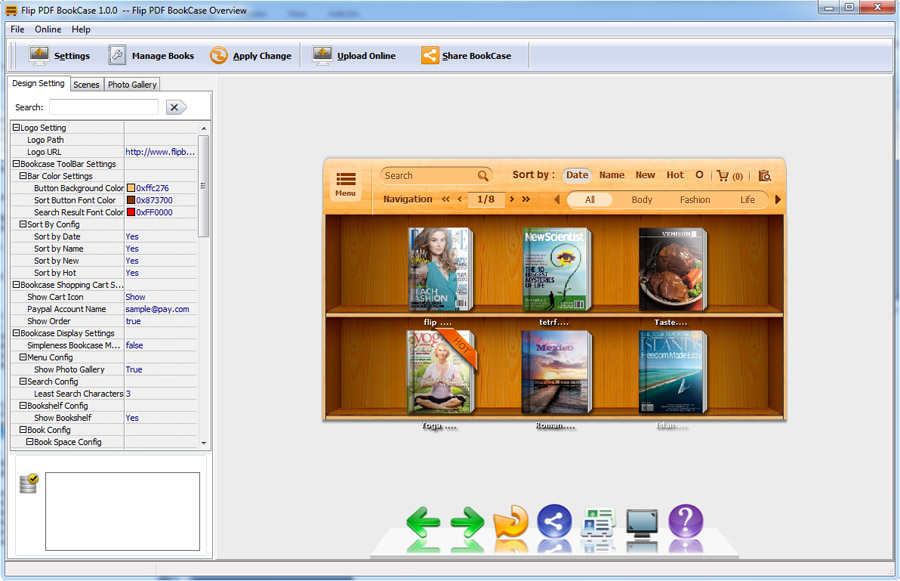
You can manage your bookcase: customize the bookcase style, manage books, upload online, share the bookcase and embed the bookcase to your website.
Learn more about Bookcase
 Help
Help
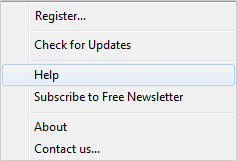
Register
After you purchase a license code, you can use it to register for the software. And once you register, you can publish flipbook without watermark.
Check for Updates
If you are not using the latest version of Flip PDF, you can check for updates and update to the latest version.
Help
Read the user guide of Flip PDF to get started creating flipbook easily.
Subscribe to Free Newsletter
We send Newsletter to inform our subscribers of any update or promotion info.
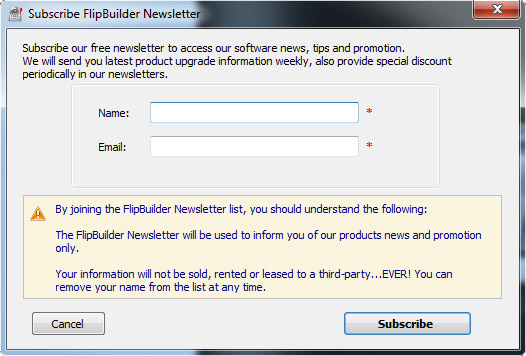
Or you can go to our website to subscribe.
About
This will show you whether you have registered with license code.
Unregistered: You will be required to input the register key to activate the full version.
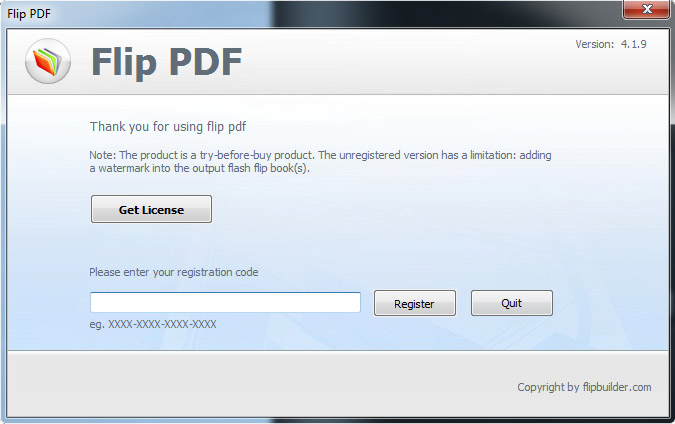
Registered: You can see your register key.
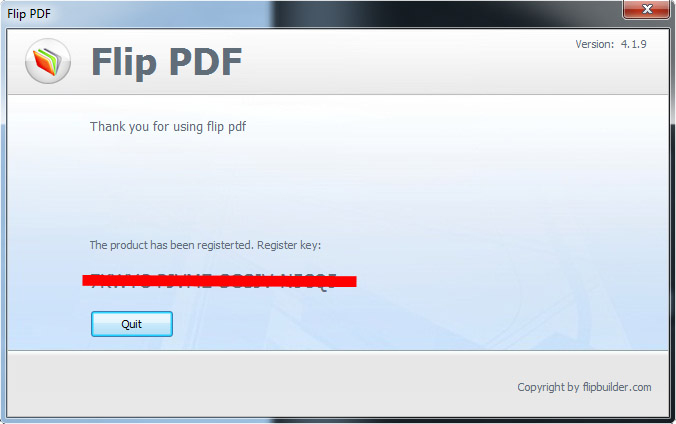
And if you want to remove the license code off the software, you can press "CTRL + ALT + R" combination.
Contact us
Contact us if you have any question: http://www.flipbuilder.com/contact.html